Chirpy Blog Customization
基于 Jekyll-Theme-Chirpy v7.3.0 的个性化设置:MathJax 配置、侧边栏样式、页脚站点统计、背景动画、自定义新的 prompt 和 details 元素样式、LQIP 和反色图片的 Python 实现等内容。
1. 简介
去年我通过 jekyll 在 GitHub Pages 上部署了自己的静态博客网站,效果甚合我意。
不过,最初我使用的模板是 Huxpro,最近我花了一点时间,把博客模板迁移到了 Chirpy。传统的 Jekyll 模板通常会把主题布局、样式文件和博客内容放在同一个仓库里,后续修改和维护时不太方便。但在 Jekyll 3.2.0 开始,Jekyll 引入了 gem-based theme 机制,可以把主题样式封装成一个 gem 包,从而实现主题文件和博客内容的分离(这有点类似于 HTML 和 CSS 的关系)。
Chirpy 正是一个基于 gem-based theme 的主题,所以利用 Chirpy Starter 生成的博客仓库,默认只包含文章、配置等内容文件,如果要想实现对 Chirpy 模板的个性化处理,就必须找到主题 gem 中对应的布局或样式文件,并在自己的博客仓库中覆盖它们。
有两种方法可供选择。第一种就是直接访问 Chirpy 的 GitHub 项目页面,从它的源码里找到需要修改的文件。第二种则是使用 Bundler,通过命令
1
bundle info --path jekyll-theme-chirpy
获取 jekyll-theme-chirpy 这个 gem 在本地的安装路径,如下图所示
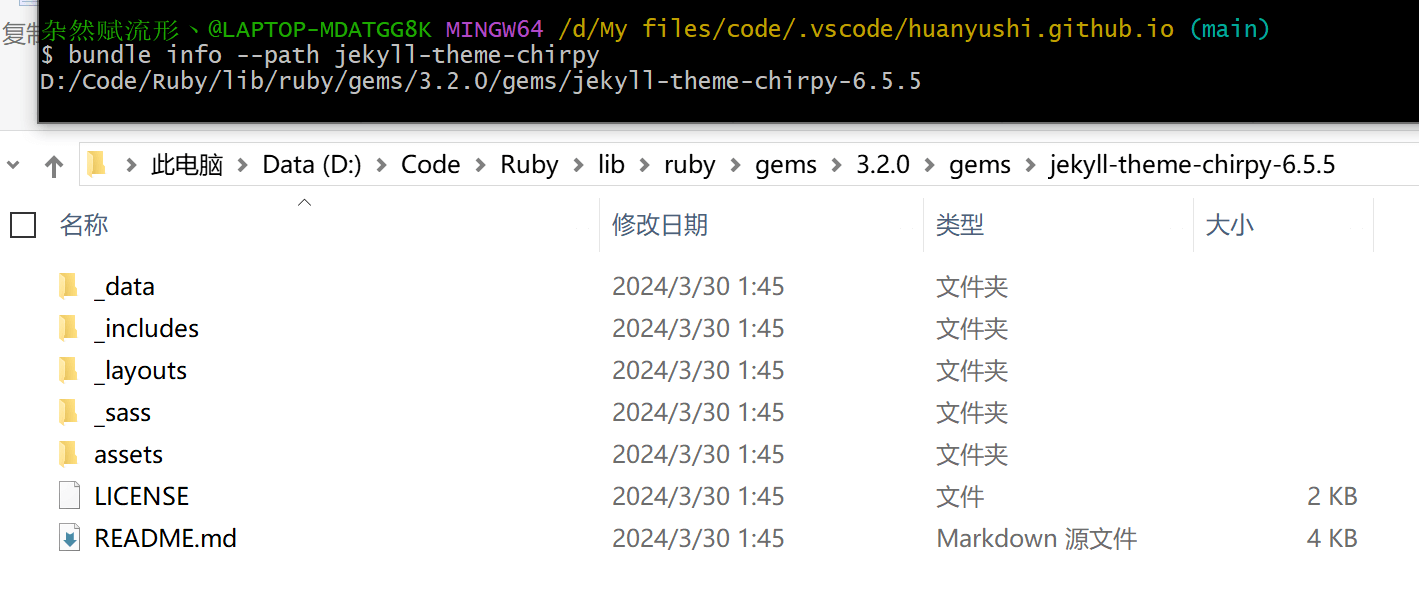 主题 gem 的本地安装路径
在里面找到相应文件后,只需要把它复制到自己博客仓库中的相同路径下,就可以进行个性化定制了。
该截图停留在 Chirpy 6.5.5 版本,但新版本也是类似的,因此这里不再单独更新。
需要注意的事,Jekyll 在生成网站时,会优先读取自己博客仓库中的同名文件。也就是说,放入博客仓库中的布局、样式或组件文件,会覆盖主题 gem 中对应路径下的原文件;而没有修改过的文件,仍然会继续从 gem 包中读取。因此,没有改动的主题文件不需要全部复制进来。这样既能保持仓库结构简洁,也方便后续跟随 Chirpy 官方版本更新。
本篇文章主要记录一些我对 Chirpy 做过的一些个性化修改。至于一些零散的小改动,就不单独写入正文了。
2. 修改 MathJax 配置
MathJax 自从进入 3.x 时代后,数学公式的渲染速度已经有了明显提升,再考虑到 MathJax 支持丰富的扩展包,功能相比 KaTeX 更加灵活,所以我还是更倾向于使用 MathJax(没有 Physics 包可以说简直要了我半条命)。
Chirpy 对 MathJax 的配置位于 assets/js/data/mathjax.js 文件中,只需要在主题 gem 的本地安装目录里找到这个文件,并将其复制到自己博客仓库中的对应路径下,就可以覆盖默认配置并进行修改。
2.1. 为 MathJax 添加扩展包
我添加了一些扩展包,例如物理专业学生人手必备的 physics,同时也自定义了一些宏来简化公式输入。代码修改如下(更多内容可以从 MathJax 官网文档里找到说明):
1
2
3
4
5
6
7
8
9
10
11
12
13
14
15
16
17
18
19
20
21
22
23
24
25
26
27
28
29
30
31
---
layout: compress
# WARNING: Don't use '//' to comment out code, use '{% comment %}' and '{% endcomment %}' instead.
---

{%- comment -%}
  See: <https://docs.mathjax.org/en/latest/options/input/tex.html#tex-options>
{%- endcomment -%}

MathJax = {
  loader: { load: ['[tex]/physics',] },
  tex: {
    inlineMath: [
      ['$', '$'],
      ['\\(', '\\)']
    ],
    displayMath: [
      ['$$', '$$'],
      ['\\[', '\\]']
    ],
    packages: {'[+]': ['physics']},
    tags: 'ams',
    macros: {
        e: '\\mathrm{e}',
        i: '\\mathrm{i}',
        RR: '\\mathbb{R}',
        ZZ: '\\mathbb{Z}',
        QQ: '\\mathbb{Q}',
      },
  },
};
2.2. 增加主页 preview 公式预览
在 blog 主页,每篇文章的摘要部分会直接显示尚未渲染的数学代码。如果希望在首页摘要中的公式也能正常预览,可以参考 issue-1140。
不过我暂时没有这个打算,这个功能似乎相对鸡肋。以后有需要再开吧。
3. 侧边栏增加背景图片
在 assets/css/jekyll-theme-chirpy.scss 文件中,增加对侧边栏(sidebar)样式设置的 SCSS 代码,其中 background-image 便是用来添加背景图片的基本命令,只需后面添加图片的 url 即可,如下:
1
2
3
4
5
6
7
8
9
10
/* 侧边栏背景图片添加 */
#sidebar {
  background-image:
    linear-gradient(rgba(0, 0, 0, 0.4), rgba(0, 0, 0, 0)),
    url("https://cdn.jsdelivr.net/gh/huanyushi/blog-images@main/img/background2.png");

  background-size: cover;
  background-repeat: no-repeat;
  background-position: center top;
}
上面代码中的 linear-gradient 会给背景图添加一个渐变遮罩的效果,用来凸显 site-title 和 site-subtitle 元素,当然另一种选择是给它们添加 text-shadow,也就是添加文字阴影。
由于我这里选的是深色背景,所以对应侧边栏文字的样式也要做相应修改。其中我给 nav-link 添加了 hover 时的平移效果,可以增强交互感。
1
2
3
4
5
6
7
8
9
10
11
12
13
14
15
16
17
18
19
20
21
22
/* 侧边栏样式设置 */
#sidebar{
  .site-title,
  .site-subtitle,
  .nav-link {
    color: #ffffff;
  }

  .site-title {
    transition: color 0.2s ease;
    &:hover {
      color: #f6d6a0;
    }
  }

  ul li.nav-item > a.nav-link {
    transition: transform 0.2s ease, color 0.2s ease;
    &:hover {
      transform: translateX(4px);
    }
  }
}
4. 首页文章卡片凸显
Chirpy 首页的文章列表本身已经采用了卡片式布局,整体观感比较清爽。不过默认情况下,当鼠标悬停在某篇文章上时,视觉反馈不太够,主要只是卡片背景变灰色。这种反馈不够醒目,因此我对首页 post card 的 hover 效果做了一点增强,保留 Chirpy 原有卡片样式的基础上,额外加入上浮、描边、左侧强调线以及标题变色等效果。这样鼠标移动到某一篇文章时,卡片会呈现出一种被选中的状态。
具体效果可以见以下图片:

 主页文章卡片凸显效果
样式在 assets/css/card-hover.scss 中,在 assets/css/jekyll-theme-chirpy.scss 中通过 @use "card-hover"; 导入即可。
1
2
3
4
5
6
7
8
9
10
11
12
13
14
15
16
17
18
19
20
21
22
23
24
25
26
27
28
29
30
31
32
33
34
35
36
37
38
39
40
41
42
43
44
45
46
47
48
49
50
51
52
53
54
55
56
/* 首页 post 卡片 hover 强化效果:不改变默认状态 */
#post-list > article.card-wrapper.card {
  position: relative;
  transition:
    transform 0.35s ease,
    box-shadow 0.35s ease,
    outline-color 0.35s ease;
}

#post-list > article.card-wrapper.card .card-title {
  transition: color 0.35s ease;
}

/* hover 时整体上浮,并额外加一圈描边 */
#post-list > article.card-wrapper.card:is(:hover, :focus-within) {
  transform: translateY(-4px);
  box-shadow:
    0 0.85rem 2rem rgba(0, 0, 0, 0.10),
    0 0 0 1px color-mix(in srgb, var(--link-color) 38%, transparent);
}

html[data-mode='dark'] #post-list > article.card-wrapper.card:is(:hover, :focus-within) {
  box-shadow:
    0 0.85rem 2rem rgba(0, 0, 0, 0.35),
    0 0 0 1px color-mix(in srgb, var(--link-color) 42%, transparent);
}

/* 左侧强调线 */
#post-list > article.card-wrapper.card::before {
  content: "";
  position: absolute;
  left: 0;
  top: 1rem;
  bottom: 1rem;
  width: 4px;
  border-radius: 999px;
  background: var(--link-color);
  opacity: 0;
  transform: scaleY(0.35);
  transform-origin: center;
  transition:
    opacity 0.35s ease,
    transform 0.35s ease;
  z-index: 2;
  pointer-events: none;
}

#post-list > article.card-wrapper.card:hover::before {
  opacity: 1;
  transform: scaleY(1);
}

/* Chirpy 的标题颜色有 !important,所以这里也必须加 */
#post-list > article.card-wrapper.card:hover .card-title {
  color: var(--link-color) !important;
}
5. 增加评论区
评论区使用 giscus,Chirpy 已经将相关选项封装好了,因此只需要在 _config.yml 文件中填上自己的仓库信息即可。
具体配置方法可以参考 giscus 项目主页。如果需要进一步自定义,例如评论排序方式、懒加载等等,也可以参考 giscus 的 Advanced usage。
6. 增加站点统计
Chirpy 的页脚采用了较为灵活的布局,因此可以通过修改 _includes/footer.html 文件,在页脚中加入站点访问统计。这个文件默认位于主题 gem 包中,需要先复制到自己博客仓库的对应路径下,再进行修改。
我这里使用的是不蒜子提供的访问统计服务,只需要在页脚合适的位置插入如下代码:
1
2
3
4
<!-- 站点统计 -->
<p>
  {% include footer-busuanzi.html %}
</p>
然后新建 _includes/footer-busuanzi.html 文件,并写入不蒜子的统计代码:
1
2
3
4
<!-- 不蒜子站点统计,放在页脚处 (footer.html 中插入) -->
<script async src="https://busuanzi.ibruce.info/busuanzi/2.3/busuanzi.pure.mini.js"></script>
<i class="fa fa-user" aria-hidden="true"></i> <span id="busuanzi_value_site_uv"></span> |
<i class="fa fa-eye" aria-hidden="true"></i> <span id="busuanzi_value_site_pv"></span>
其中 uv 表示独立访客数,pv 表示页面浏览量,具体说明可以参考不蒜子教程。
如果需要更详细的站点统计信息,例如用户来源、访问地区、页面访问路径、访问设备等,也可以使用 Google Analytics ,Chirpy 已经在 _config.yml 中预留了相关配置,填入自己的 Google Analytics ID 即可。
由于这里覆盖了主题自带的
_includes/footer.html文件,后续升级 Chirpy 时,如果页脚结构发生变化,需要手动检查并同步相关修改。
7. 增加背景动画
参考 @NichtsHsu 的博客设计,我增加了背景动画效果(做了一定程度的修改)。
首先,在 _layouts/default.html 中加入如下代码,这个文件同样位于 Chirpy 的主题 gem 包中,因此需要先复制到自己博客仓库的对应路径下,再进行修改。
1
2
3
{% if site.background_animation %}
  {% include animated-background.html %}
{% endif %}
再新建 _includes/animated-background.html 文件,用于生成背景动画所需的装饰性元素,这里的 animation-circle 数量会影响页面中动画元素的个数,请注意,数量不要设置太大,这会带来一定的性能开销。
1
2
3
4
5
<div id="animation" aria-hidden="true">
  {% for i in (1..30) %}
    <div class="animation-circle"></div>
  {% endfor %}
</div>
而动画样式写在 assets/css/animation.scss 中,并在 assets/css/jekyll-theme-chirpy.scss 中通过 @use "animation"; 导入。这样单独拆分出来,后续维护和调整会更加方便。
1
2
3
4
5
6
7
8
9
10
11
12
13
14
15
16
17
18
19
20
21
22
23
24
25
26
27
28
29
30
31
32
33
34
35
36
37
38
39
40
41
42
43
44
45
46
47
48
49
50
51
52
53
54
55
56
57
58
59
60
/* 生成动画 */
@use 'sass:math';

@function random_range($min, $max) {
  @return $min + math.random() * ($max - $min);
}

@keyframes animate {
  0% {
    transform: translate3d(0, 0, 0) rotate(0deg);
    opacity: 1;
    border-radius: 0;
  }

  100% {
    transform: translate3d(0, -1200px, 0) rotate(720deg);
    opacity: 0;
    border-radius: 50%;
  }
}

#animation {
  position: fixed;
  inset: 0;
  overflow: hidden;
  pointer-events: none;

  @media all and (min-width: 1200px) {
    .animation-circle {
      position: absolute;
      left: var(--circle-left);
      bottom: -300px;
      display: block;
      background: var(--circle-background);
      width: var(--circle-side-length);
      height: var(--circle-side-length);
      animation: animate var(--circle-time) linear infinite;
      animation-delay: var(--circle-delay);
      pointer-events: none;
      will-change: transform, opacity;

      @for $i from 1 through 30 {
        &:nth-child(#{$i}) {
          --circle-left: #{random_range(0%, 100%)};
          --circle-background: rgba(#{random_range(0, 255)}, #{random_range(0, 255)}, #{random_range(0, 255)}, 0.06);
          --circle-side-length: #{random_range(20px, 200px)};
          --circle-time: #{random_range(10s, 45s)};
          // --circle-delay: #{random_range(0s, 25s)};
          --circle-delay: #{random_range(-25s, 0s)};
        }
      }
    }
  }

  @media all and (max-width: 1199px), (prefers-reduced-motion: reduce) {
    .animation-circle {
      display: none;
    }
  }
}
其中,animation-delay 使用了负值 --circle-delay: #{random_range(-25s, 0s)},这样页面加载完成后,动画元素不会全部从同一起点开始运动,而是像已经运行了一段时间一样自然分布在页面中。
最后,在 _config.yml 中设置 background_animation: true 即可产生动画效果。
由于这里覆盖了主题自带的
_layouts/default.html文件,后续升级 Chirpy 时,如果页面默认样式发生变化,需要手动检查并同步相关修改。
8. 增加 GitHub 贡献图
利用 GitHub 上的一个项目 gh-contrib-graph,在 HTML 里加入以下代码:
1
2
3
4
5
6
7
8
<!-- GOES INTO HEAD -->
<link rel="stylesheet" href="http://lengthylyova.pythonanywhere.com/static/gh-contrib-graph/gh.css">

<!-- GOES INTO BODY -->
<div id="gh" data-login="YOUR_GITHUB_LOGIN"></div>

<!-- GOES INTO THE END OF BODY -->
<script src="http://lengthylyova.pythonanywhere.com/static/gh-contrib-graph/gh.js"></script>
将其中的 YOUR_GITHUB_LOGIN 改成 GitHub 用户名即可。
我个人建议在 assets/css/jekyll-theme-chirpy.scss 导入外部 CSS 样式文件,即(下面是我自己设置的样式代码)
1
2
3
4
5
6
7
8
9
10
11
12
13
14
15
16
17
@use url('http://lengthylyova.pythonanywhere.com/static/gh-contrib-graph/gh.css');

.ghCalendarHeader {
  margin-bottom: 1rem;
  color:var(--text-color);
}
.ghThumbNail {
  display: none;
}
#gh a {
  text-decoration: none;
  color: var(--link-color);
}
.ghCalendarCard {
  border: var(--language-border-color) 1px solid;
  border-radius: .5rem;
}
然后在需要加入的地方插入剩下两行代码即可(.md支持 HTML 语言),效果如下图所示:
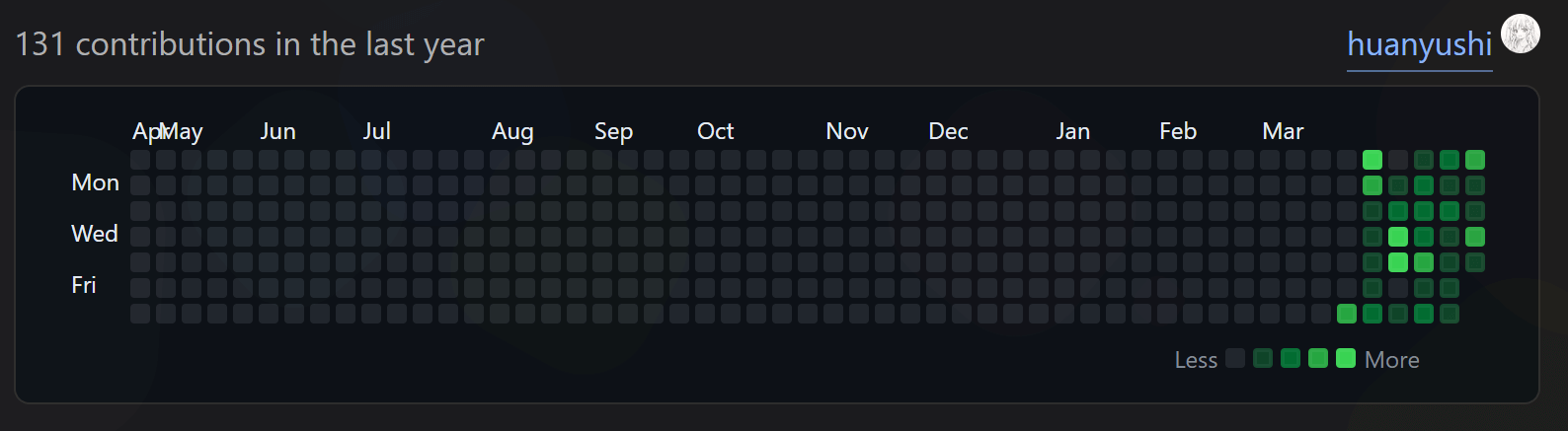 GitHub 贡献图
9. 增加 4 个新的 prompt
Chirpy 已经设置了 4 个 prompt,效果如下:
To be or not to be. That is a question.
To be or not to be. That is a question.
To be or not to be. That is a question.
To be or not to be. That is a question.
在此基础上,我构建了 4 个新的 prompt,效果如下:
To be or not to be. That is a question.
To be or not to be. That is a question.
To be or not to be. That is a question.
\[x^2 + y^2 =z^2\]To be or not to be. That is a question.
— Shakespeare
当然也可以不加标题,效果如下:
To be or not to be. That is a question.
To be or not to be. That is a question.
To be or not to be. That is a question.
To be or not to be. That is a question.
我将样式写在 assets/css/_colorbox.scss 中,并在 assets/css/jekyll-theme-chirpy.scss 里通过 @use "colorbox"; 导入。
1
2
3
4
5
6
7
8
9
10
11
12
13
14
15
16
17
18
19
20
21
22
23
24
25
26
27
28
29
30
31
32
33
34
35
36
37
38
39
40
41
42
43
44
45
46
47
48
49
50
51
52
53
54
55
56
57
58
59
60
61
62
63
64
65
66
67
68
69
70
71
72
73
74
75
76
77
78
79
80
81
82
83
84
/* colorbox 样式设计 */
/* 定义了 box-info, box-tip, box-warning, box-danger 四种 colorbox */
@mixin colorbox($border-color, $icon-color, $icon-content, $bg-color, $fa-style: 'solid') {
    position: relative;
    margin-bottom: 1rem;
    padding: 0.6rem 1rem 0.6rem 1.5rem;

    color: var(--text-color);
    border-left: .2rem solid $border-color;
    border-radius: 0.25rem;
    box-shadow: var(--colorbox-shadow-color, var(--language-border-color)) 0px 0px 0px 1px;

    & > .box-title {
      position:relative;

      margin: -.6rem -1rem .6rem -1.5rem;
      padding: .5rem .6rem .5rem 3rem;

      color: $icon-color;
      background-color: $bg-color;
      font-weight: 600;
    }

    & > .box-title::before {
      content: $icon-content;

      position: absolute;
      left: .2rem;
      margin-top: .4rem;

      width: 3rem;
      color: $icon-color;
      font: var(--fa-font-#{$fa-style});
      text-align: center;
      text-rendering: auto;

      -webkit-font-smoothing: antialiased;
    }

    & > :last-child{
        margin-bottom: 0;
    }
}

/* box-info 蓝色 */
.box-info {
@include colorbox(
    var(--prompt-info-icon-color),
    var(--prompt-info-icon-color),
    "\f06a",
    var(--prompt-info-bg)
);
}

/* box-tip 绿色 */
.box-tip {
@include colorbox(
    var(--prompt-tip-icon-color),
    var(--prompt-tip-icon-color),
    "\f0eb",
    var(--prompt-tip-bg),
    'regular'
);
}

/* box-warning 黄色 */
.box-warning {
@include colorbox(
    var(--prompt-warning-icon-color),
    var(--prompt-warning-icon-color),
    "\f06a",
    var(--prompt-warning-bg)
);
}

/* box-danger 红色 */
.box-danger {
@include colorbox(
    var(--prompt-danger-icon-color),
    var(--prompt-danger-icon-color),
    "\f071",
    var(--prompt-danger-bg)
);
}
10. Details 元素的样式设计
HTML 中的 <details"> 元素可以创建一个组件,仅当被切换为展开状态时,才会显示里面的内容。
请点击这里
床前明月光,疑是地上霜。举头望明月,低头思故乡。 $$ x^2 + y^2 =z^2, \quad x_{1,2} = \frac{-b\pm\sqrt{b^2-4ac}}{2a} $$但显然它的样式太单调了,我在其基础上做了一些修改,效果如下:
详细信息
床前明月光,疑是地上霜。举头望明月,低头思故乡。
\[x^2 + y^2 =z^2, \quad x_{1,2} = \frac{-b\pm\sqrt{b^2-4ac}}{2a}\]在 Markdown 文件输入以下代码即可实现,其中 markdown = "1" 是为了在 HTML 元素内也可以使用 Markdown 语法,另外在其中加入 open 可以设置它为默认展开的形式(否则为默认关闭):
1
2
3
4
5
6
7
8
9
<details class="details-block" markdown="1">
<summary>详细信息 </summary>
床前明月光,疑是地上霜。举头望明月,低头思故乡。

$$
x^2 + y^2 =z^2, \quad x_{1,2} = \frac{-b\pm\sqrt{b^2-4ac}}{2a}
$$

</details>
样式的设计添加到了 assets/css/details.scss 中,在 assets/css/jekyll-theme-chirpy.scss 里通过 @use "details"; 导入即可。
1
2
3
4
5
6
7
8
9
10
11
12
13
14
15
16
17
18
19
20
21
22
23
24
25
26
27
28
29
30
31
32
33
34
35
36
37
38
39
40
41
42
43
44
45
46
47
48
49
50
51
52
53
54
55
56
57
58
59
60
61
62
63
64
65
66
67
68
69
70
71
72
73
74
75
76
77
78
79
80
81
82
83
/* details class="details-block" 样式设计 */
details.details-block {
  border-radius: .25rem;
  border-left: .2rem solid var(--details-border-color);
  box-shadow: 0px 0px 0px 1px var(--details-shadow-color, var(--language-border-color));
  margin-bottom: 1rem;
  padding: .6rem 1rem .6rem 1.5rem;
  overflow: hidden;

  > :last-child:not(summary) {
    margin-bottom: 0;
  }
}

details.details-block > summary {
  padding: .5rem 2.5rem .5rem 1rem;
  margin: -.6rem -1rem -.6rem -1.5rem;
  font-weight: 600;
  background-color: var(--details-bg);
  color: var(--details-border-color);
  position: relative;
  list-style: none;
  cursor: pointer;
  user-select: none;
}

details.details-block > summary:focus-visible {
  outline: 2px solid var(--details-border-color);
  outline-offset: 2px;
}

details.details-block > summary::-webkit-details-marker {
  display: none;
}

details.details-block > summary::marker {
  content: "";
}

details.details-block > summary::before {
  content: '😼';
  margin-right: .5rem;
  display: inline-block;
  width: 1.4em;
  text-align: center;
}

details.details-block[open] > summary::before {
  content: '🙀';
  animation: my-cat .2s ease-in-out;
}

details.details-block > summary::after {
  font-family: 'Font Awesome 6 Free';
  font-weight: 900;
  content: "\f105"; /* fa-angle-right */
  display: inline-block;
  transition: transform .2s ease;
  position: absolute;
  right: 1rem;
}

details.details-block[open] > summary::after {
  transform: rotate(90deg);
}

details.details-block[open] > summary {
  margin-bottom: .6rem;
}

@keyframes my-cat {
  50% {
    transform: scale(1.2);
  }
}

@media (prefers-reduced-motion: reduce) {
  details.details-block > summary::after,
  details.details-block[open] > summary::before {
    animation: none;
    transition: none;
  }
}
11. LQIP 的 Python 实现
LQIP (Low Quality Image Placeholder) 指的是低质量图像占位符,这是一种网页性能优化技术,在加载高质量图像之前,先加载一个轻量级、低分辨率的模糊图像来提供一种预览。这种预览图像可以帮助减少页面加载时间和带宽消耗,提高访问者的视觉体验。
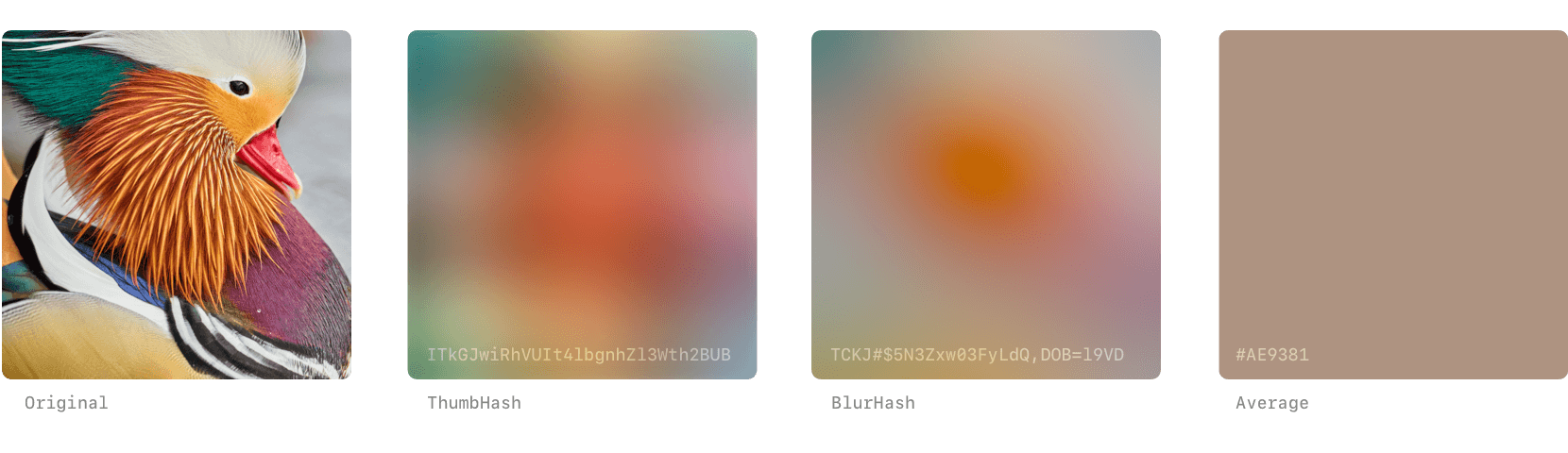 低质量图像占位符,from daun.
Chirpy 已经预设了此功能,只要在每个文档的前言区设置 lqip 即可。我写了一个 Python 代码可以方便地将图像压缩模糊并保存,且转换成 base64 编码。这是根据我的文件路径来写的,有需要可以自行调整。
1
2
3
4
5
6
7
8
9
10
11
12
13
14
15
16
17
18
19
20
21
22
23
24
25
26
27
28
29
30
31
32
33
34
35
36
37
38
39
40
from PIL import Image, ImageFilter
import base64
import pyperclip

def image_lqip(image_path,output_image_path,length=16,width=8,radius=2):
    """
    生成 LQIP(Low-Quality Image Placeholder)并保存到文件中,并返回base64编码的字符串。

    参数:
    - image_path:原始图像文件路径
    - output_image_path:输出 LQIP 文件路径
    - length:调整后图像的长度,默认为 16
    - width:调整后图像的宽度,默认为 8
    - radius:高斯模糊的半径,默认为 2

    返回值:
    - base64 编码的字符串
    """
    im = Image.open(image_path)
    im = im.resize((length,width))
    im = im.convert('RGB')
    im2 = im.filter(ImageFilter.GaussianBlur(radius)) # 采用高斯模糊
    im2.save(output_image_path)

    # 转成 base64 编码
    with open(output_image_path, "rb") as image_file:
        encoded_string = base64.b64encode(image_file.read())
        base64_string = encoded_string.decode('utf-8')

    return base64_string

image_start = "../huanyushi.github.io"
image_end = input()
image_path = image_start + image_end

base64_image = image_lqip(image_path, "test.jpg")

pyperclip.copy('data:image/jpg;base64,'+ base64_image) # 将 print 结果导入粘贴里
print(base64_image)
print(image_end) # 顺带输出一下导入的是什么文件
如果想要将 base64 编码的字符串转换成图片,也可以用以下 Python 程序进行转换。
1
2
3
4
5
6
7
8
9
10
11
12
13
14
15
16
17
18
19
20
21
import base64

def save_base64_image(base64_string, output_path):
    """
    将base64编码的字符串保存为图像文件。

    参数:
    - base64_string:base64编码的字符串
    - output_path:输出图像文件路径
    """

    # 解码base64编码的字符串
    decoded_data = base64.b64decode(base64_string)

    # 将解码后的数据保存为图像文件
    with open(output_path, 'wb') as image_file:
        image_file.write(decoded_data)

# 这是模板作者里用的图片,当作例子来展示了。
base64_string = "/9j/4AAQSkZJRgABAQAAAQABAAD/2wBDAAgGBgcGBQgHBwcJCQgKDBQNDAsLDBkSEw8UHRofHh0aHBwgJC4nICIsIxwcKDcpLDAxNDQ0Hyc5PTgyPC4zNDL/2wBDAQgJCQwLDBgNDRgyIRwhMjIyMjIyMjIyMjIyMjIyMjIyMjIyMjIyMjIyMjIyMjIyMjIyMjIyMjIyMjIyMjIyMjL/wAARCAAIABADASIAAhEBAxEB/8QAHwAAAQUBAQEBAQEAAAAAAAAAAAECAwQFBgcICQoL/8QAtRAAAgEDAwIEAwUFBAQAAAF9AQIDAAQRBRIhMUEGE1FhByJxFDKBkaEII0KxwRVS0fAkM2JyggkKFhcYGRolJicoKSo0NTY3ODk6Q0RFRkdISUpTVFVWV1hZWmNkZWZnaGlqc3R1dnd4eXqDhIWGh4iJipKTlJWWl5iZmqKjpKWmp6ipqrKztLW2t7i5usLDxMXGx8jJytLT1NXW19jZ2uHi4+Tl5ufo6erx8vP09fb3+Pn6/8QAHwEAAwEBAQEBAQEBAQAAAAAAAAECAwQFBgcICQoL/8QAtREAAgECBAQDBAcFBAQAAQJ3AAECAxEEBSExBhJBUQdhcRMiMoEIFEKRobHBCSMzUvAVYnLRChYkNOEl8RcYGRomJygpKjU2Nzg5OkNERUZHSElKU1RVVldYWVpjZGVmZ2hpanN0dXZ3eHl6goOEhYaHiImKkpOUlZaXmJmaoqOkpaanqKmqsrO0tba3uLm6wsPExcbHyMnK0tPU1dbX2Nna4uPk5ebn6Onq8vP09fb3+Pn6/9oADAMBAAIRAxEAPwB1s4jcEmpLtg7ZU0UV9jb3rnwt/csf/9k="
save_base64_image(base64_string, "decoded_image.webp")
12. 反色图片的 Python 实现
Chirpy 支持切换明暗模式,同时文中的图片也可以相应转换至明暗模式。但在暗色模式下,如果文章中插入了白底图片,视觉上会显得格外刺眼,夜间阅读会破防整体的暗色观感。一个解决办法是对于部分图片通过反色的方式将亮色转换至暗色(但不是所有,注意反色不等于暗色!)。
我写了一个 Python 程序可以将图片转换至反色模式,有需要可以自取。同样,文件路径也是根据我自己实际情况来设置的,需要做相应修改:
1
2
3
4
5
6
7
8
9
10
11
12
13
14
15
16
17
18
19
20
21
22
23
24
25
26
27
28
29
30
31
from PIL import Image, ImageChops
import matplotlib.pyplot as plt

def invert_color(fname):
    im = Image.open(fname)
    if im.mode == "P":
        im = im.convert('RGB')
    im_inverted = ImageChops.invert(im)
    # im.close()
    return im, im_inverted

# 这部分是调整至图片文件路径
path_start = "../img/in-post/"
path_end = '2023-03-23/preface.PNG'
image_path = path_start + path_end

image_origin, image_inverted = invert_color(image_path)

# 绘图对比,不想绘图可以直接去掉
plt.subplot(121)
plt.title('original')
plt.axis('off')
plt.imshow(origin, cmap='gray', vmin=0, vmax=255)
plt.subplot(122)
plt.title('inverse')
plt.imshow(image_output, cmap='gray', vmin=0, vmax=255)
plt.axis('off')
plt.show()

# 保存图片
image_output.save(image_start + image_end.replace('.', '-dark.')) # 如:test.PNG 生成的反色图片保存为 test-dark.PNG
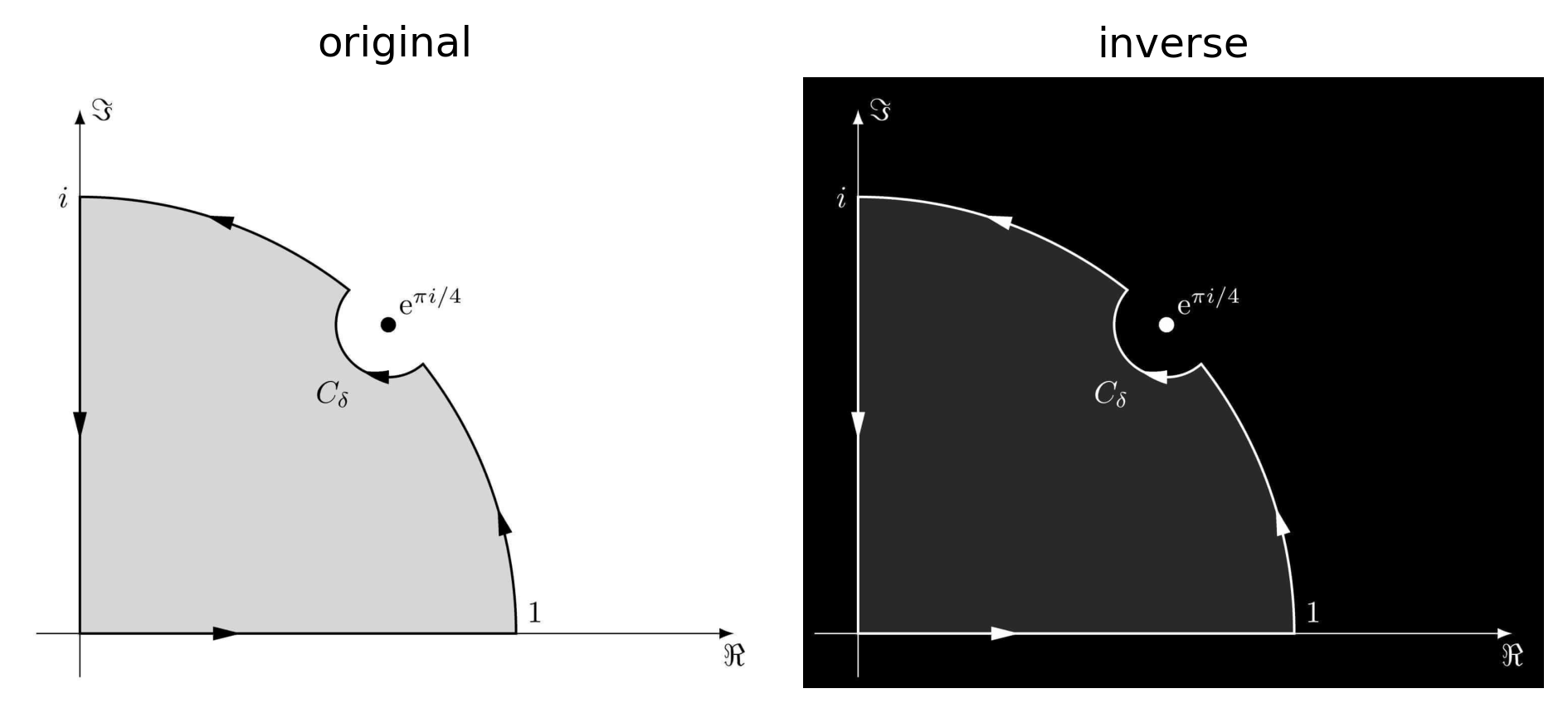
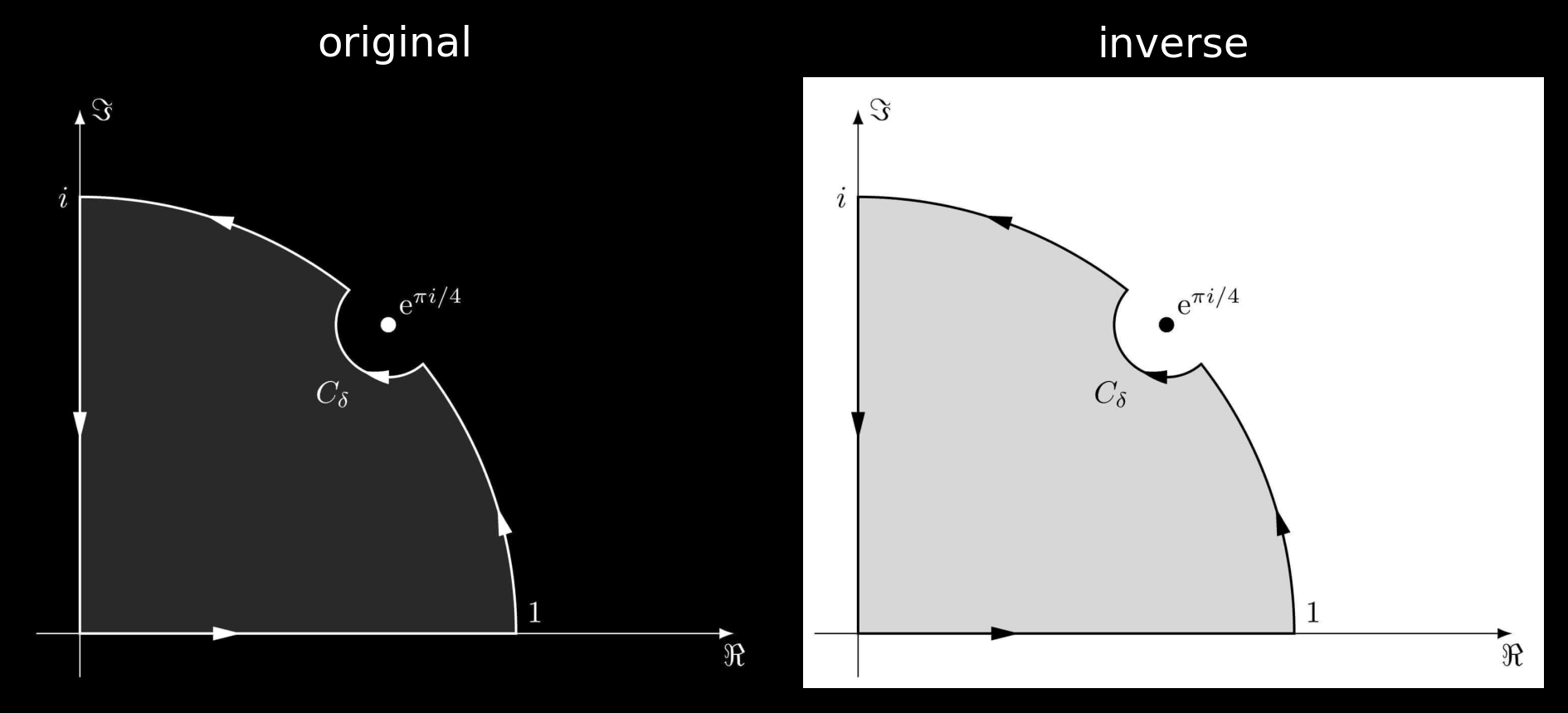 反色图片与原图片对比
13. 暗色模式下降低图片亮度
通过指定明暗模式下对应显示的图片,也就是使用 Chirpy 自带的 light / dark 双图机制,这样当然最稳妥,也能获得最精确的显示效果。但它的问题也很明显,每张图片都需要额外维护一份暗色版本。如果只是想让某些黑白示意图在暗色模式下自动反色,这种做法就显得有些繁琐,就比如上一节提到的利用 Python 生成反色图片。
因此,一个更好的办法是在暗色模式下给文章中的普通图片自动添加一个轻微降低亮度的滤镜。在 assets/css/jekyll-theme-chirpy.scss 里添加以下代码即可:
1
2
3
4
5
6
7
8
9
10
11
12
13
14
15
16
17
18
19
20
21
22
23
24
25
26
27
/* 暗色模式下,降低普通文章图片亮度,避免白底图片刺眼 */

/* 用户手动切换为暗色模式 */
html[data-mode='dark'] article img {
  filter: brightness(.7) contrast(.95);
}

/* 已经专门指定为 dark 模式的图片,不再额外压暗 */
html[data-mode='dark'] article .dark img,
html[data-mode='dark'] article .no-dark-filter,
html[data-mode='dark'] article .no-dark-filter img {
  filter: none;
}

/* 用户没有手动指定模式,且系统是暗色模式 */
@media (prefers-color-scheme: dark) {
  html:not([data-mode]) article img {
    filter: brightness(.7) contrast(.95);
  }

  /* 已经专门指定为 dark 模式的图片,不再额外压暗 */
  html:not([data-mode]) article .dark img,
  html:not([data-mode]) article .no-dark-filter,
  html:not([data-mode]) article .no-dark-filter img {
    filter: none;
  }
}
这里的核心代码是 filter: brightness(.8) contrast(.95);,这表示将图片亮度降低到原来的 80%,对比度略微降低到 95%,这可以让白底图片在夜间模式下不至于过于刺眼,同时也不会严重影响图片内容的可读性。
考虑到 Chirpy 本身支持为同一张图片分别指定 light / dark 模式。对于这种已经专门为暗色模式准备过的图片,就不应该再额外降低亮度。因此需要加入恢复规则,见以上代码的 article .dark img {filter: none;} 部分。也就是说,只要图片位于 .dark 元素内部,就取消亮度滤镜。
另一方面,如果某些图片本来就是暗色背景,或者图片颜色具有重要信息,我们也可以手动添加一个排除类 .no-dark-filter,例如
1
{: .no-dark-filter }
添加了 .no-dark-filter 属性的图片就不会出现亮度滤镜。
14. 其他问题
14.1. GitHub Commits 提交规范
Conventional Commits 是一种规范化的 Git 提交信息格式,能有效提升 commit message 的可读性,也方便历史记录和版本控制。
最基础的格式如下:
1
2
3
4
5
<type>[optional scope]: <description>

[optional body]

[optional footer(s)]
其中 <type> 表示提交类型(必填),也决定它在 changelog 中的分类,通常有以下几种:
- feat: 新功能;
- fix: 修复 bug;
- docs: 仅修改文档;
- style: 不影响代码逻辑的修改,比如格式、空格、缩进、缺失的分号;
- refactor: 代码重构(不包含功能变更或 bug 修复);
- perf: 性能优化;
- test: 添加测试或修改测试;
- build: 构建系统或依赖的变动(例如 webpack、rollup)
- chore: 杂项、不属于其他类型的更改(比如改 .gitignore、更新依赖);
- ci: 持续集成相关(GitHub Actions、Travis CI、Circle 等);
- revert: 回滚某个提交(会自动生成 footer)。
而 [optional scope] 表示影响范围(可选),[description] 表示简短的描述(必填),例如:
1
2
3
feat(blog): add comment system
fix(pdf): correct link to external document
docs(readme): update usage instructions
[optional body] 在解释提交的动机、问题背景、修改细节,尤其是重大提交或 refactor 时有用。[optional footer(s)] 则用于关闭 issue、BREAKING CHANGE 等信息。
14.2. git push 失败: couldn’t connet to server
将本地文件 push 到 github 远程仓库里,经常出现 couldn't connet to server 的报错,经过查询没有明显有效的办法。以下是可能有效的措施(目前来看第三种最有效):
- 关掉梯子 (VPN) 再 push 一下试试;
- 在命令行中运行以下代码来取消代理。
1
2
git config --global --unset http.proxy
git config --global --unset https.proxy
- 打开梯子的情况下。对右下角网络点击右键,打开
网络和 Internet 设置,点击代理,查看地址和端口号,如127.0.0.1:7890。在命令行中输入1
git config --global http.proxy http://127.0.0.1:7890可通过
git config --global -l查看是否设置成功。之后再进行 push 即可。
14.3. jekyll serve 预览速度较慢
方法很多,比如减少文件夹数量、压缩图片大小等。以下罗列一些我摸索出来的方法:
对博客设置增量构建(即只重新建构发生更改的文件,而不是每次重新构建整个站点),可以在
_config.yml中添加incremental: true,之后每次 jekyll 都将重新构建发生更改的文件。当然更合适的方法是使用
bundle exec jekyll s --incremental或者bundle exec jekyll s --I来构建博客,这样手动可调更灵活。压缩图片大小,这也是加速博客构建和浏览的一种方式。
14.4. 避免 Liquid 标签被解析
在 Jekyll 中,{{ ... }} 和 {% ... %} 是 Liquid 模板语言的语法。如果在 post 中不小心使用了它们(比如用了花括号),可能会被 Jekyll 当作模板语法解析,导致渲染出错。
有两种常用的解决办法。
- 禁用整篇文章的 Liquid 渲染。只需在文章的 Front Matter 中添加
1
2
3
---
render_with_liquid: false
---
- 用
{% raw %}包裹需要保留的 Liquid 代码段。一个例子如下所示:1 2 3 4 5
<!-- {% raw %} --> {% if user %} Hello, {{ user.name }}! {% endif %} <!-- {% endraw %} -->
与第一种方法相比,第二种方法更灵活,只影响局部代码块,其它部分仍可正常使用 Liquid 模板。
14.5. 在 blog 中插入文件
使用 <iframe> 元素即可,如
1
<iframe src="file path" width="100%" height='800'></iframe>
利用这个技巧可以在 post 中插入 .html, .pdf 等文件进行预览。
这个功能在谷歌浏览器上可以正常使用,但是其他浏览器不一定支持,且加 overflow 在移动端也不能产生滚动条,慎用!
14.6. 在 blog 中在线运行 Python
在 post 里加入以下代码,可以在线运行 Python (虽然感觉有点鸡肋,但还是记录在这里)
1
2
3
4
5
<iframe
  src="https://jupyterlite.github.io/demo/repl/index.html?kernel=python&toolbar=1"
  width="100%"
  height="500px">
</iframe>
14.7. 其他可能有用的资源
- TinyPNG, Website Planet:免费的在线图片压缩网站,虽然说是有损压缩,但视觉上几乎没有影响,且图片压缩甚至能达到 80%。
- PageSpeed Insights:谷歌推出的网站性能检测工具,输入网址后会提供一个报告和优化方案,顺带看看哪里拖慢了加载速度。
- Coolors, Color Hunt:在线调色网站,可以用来提供推荐配色。